
How to import your tenant list from a spreadsheet
Import your whole tenant list from a CSV file: start from the sample, columns matched for you, a preview that flags duplicates, each tenant in their unit, then paid-through dates set in one go.
Runs 1:18. Filmed on Pine Ridge Self Storage, a made-up demo facility with sample data. Nothing loads from YouTube until you press play, or watch it on YouTube.
Transcript
0:00Moving off a spreadsheet
Switching from a spreadsheet or a paper book? You don't have to type your tenants in one by one. Add your units first, then open Tenants, pick your facility, and click Import CSV.
0:15Start from the sample
Download Sample gives you a file with the right columns. Paste your list into it, save it as CSV, and choose the file.
0:25Columns matched for you
The import matches your columns to its fields: name, email, phone, unit and rent. Only Full Name is required. Anything missing can be added later.
0:37Preview and duplicates
Check the preview. Rows that look like tenants you already have are flagged, like this one, for a unit someone already rents. With Skip Duplicates on, they're left out.
0:50Your tenants, in their units
When it's done, they're all in your tenant list, newest first, each in their unit with their rent. What they don't have yet is a paid-through date.
1:00Set their paid-through dates
So click Select Multiple and tick the tenants you imported. Then click Paid through, pick the month they've paid up to, and confirm. Late status and reminders now start from the right date.
More videos
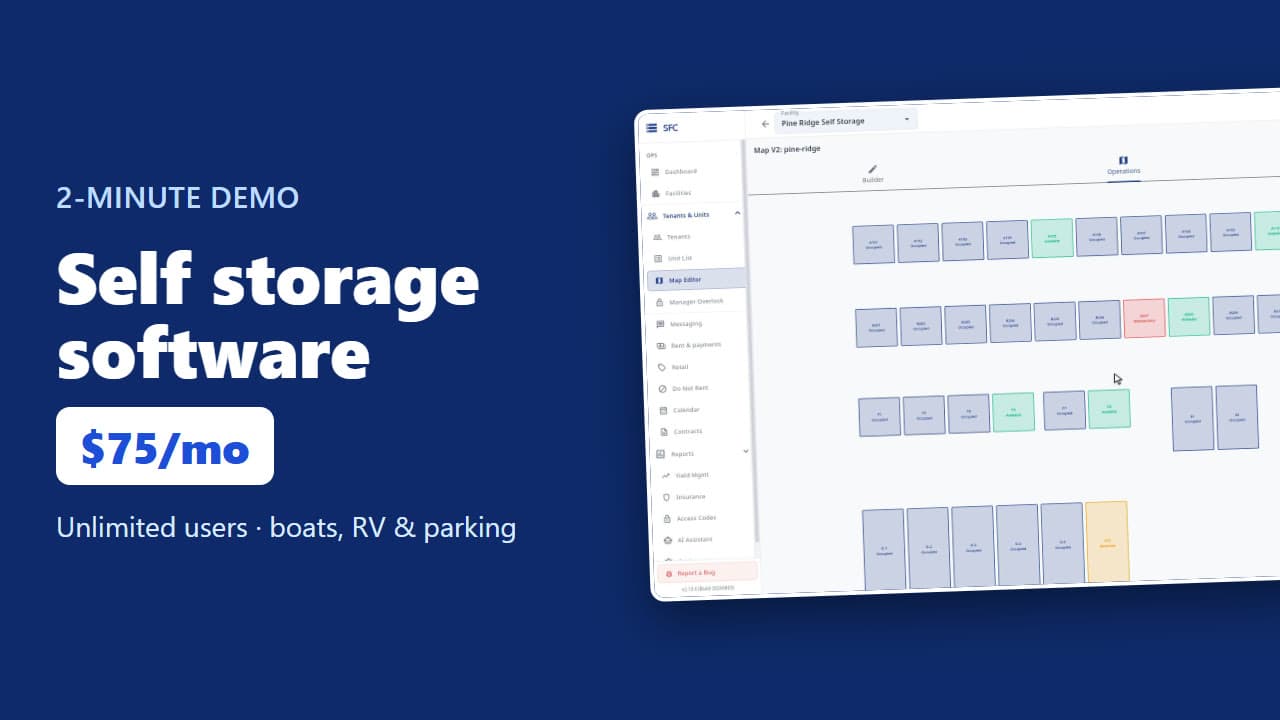 1:53
Self storage software demo in two minutes
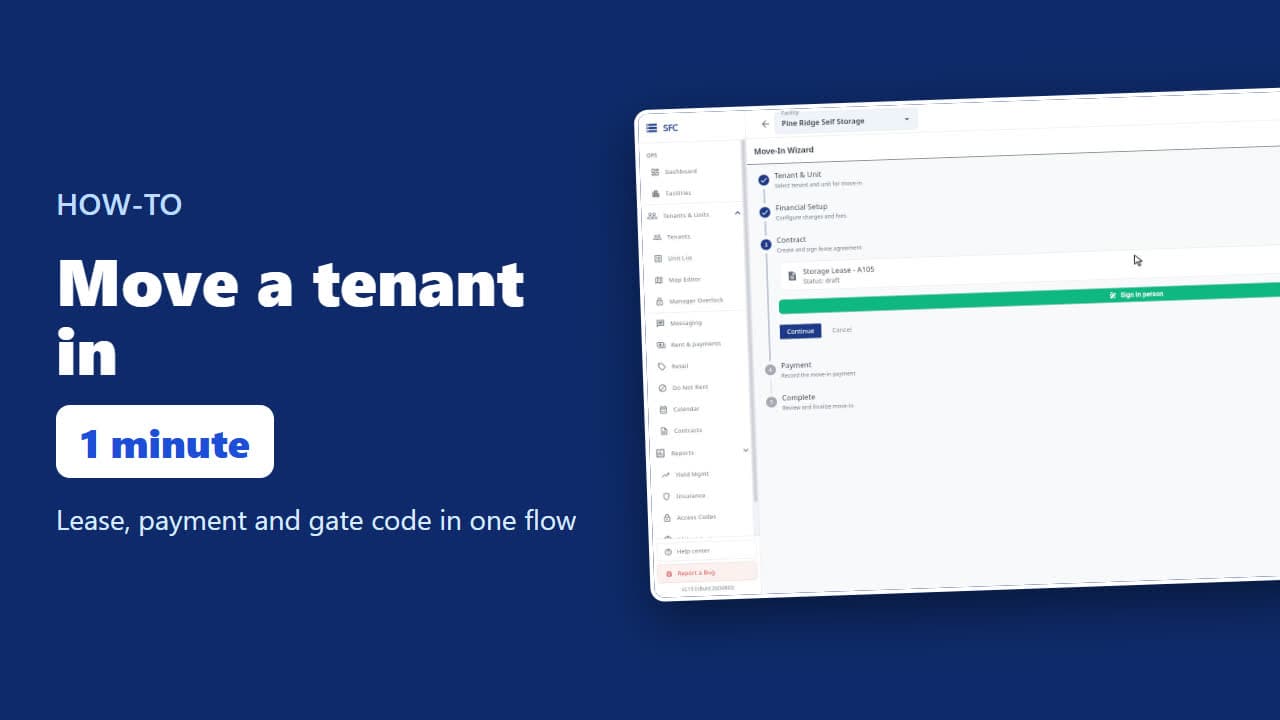 1:24
How to move a tenant in
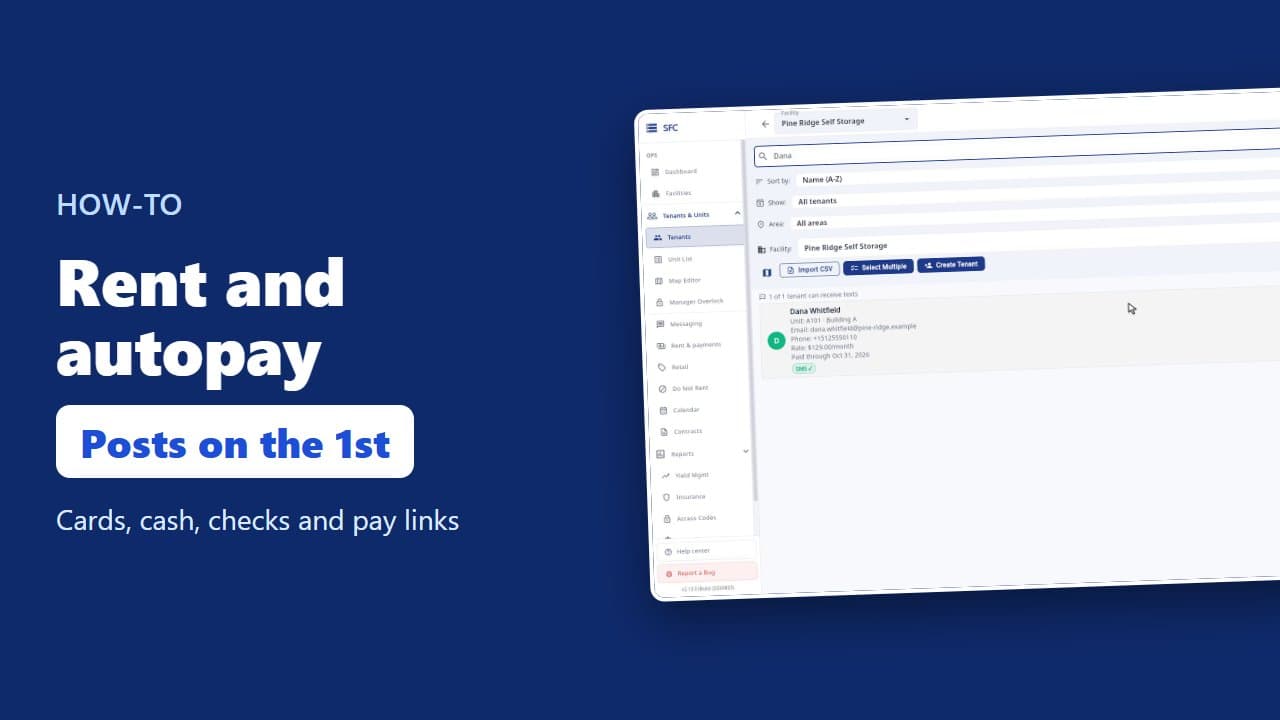 1:26
How to collect rent: autopay, cash and check, pay links
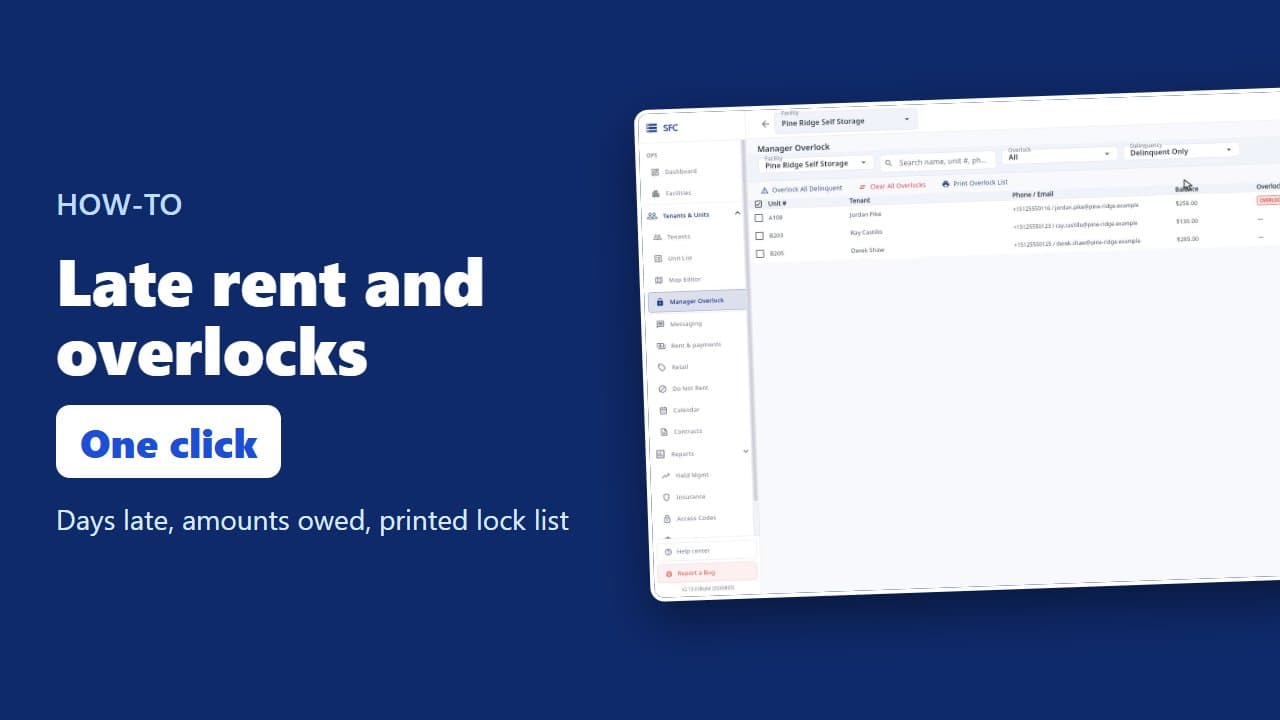 1:20
Late rent: find who is behind and overlock their units
 1:16
How to text and email your tenants
 1:23
How renters rent a storage unit online
 1:08
Site map, units, parking, RV sites and boat slips
 1:35
How to bill tenants on their move-in day
 1:17
Gate codes and the gate changes list
Try it on your own facility
Start a trial, add your units and do it the way the video shows.
No onboarding fee. $75 per facility, per month. Built for self-storage operators.