
How to move a tenant in
A move-in from the Calendar: pick the tenant and unit, check rent, proration and deposit, create and sign the lease, record the first payment however they paid, from cash or a check to Venmo or your own payment link, and the unit is occupied with a gate code ready.
Runs 1:24. Filmed on Pine Ridge Self Storage, a made-up demo facility with sample data. Nothing loads from YouTube until you press play, or watch it on YouTube.
Transcript
0:00Start from the Calendar
Here's how a move-in works in Storage Facility Creator. Open the Calendar, click the move-in date, and choose Move-in. The Move-In Wizard opens.
0:11Tenant and unit
Pick the tenant, and the unit they're taking. If they're brand new, add them on the Tenants screen first, then come back here. Then Continue.
0:21Rent, proration and deposit
Financial Setup shows their monthly rent. Leave Prorate Rent on when they move in part way through the month, so the first month is worked out for you. Add a security deposit or fees here if you take them.
0:37Create and sign the lease
Create Contract makes the lease from your template. Sign it in person at the counter, right on the screen, or email them a signing link and they sign from their phone.
0:48First payment
Then record the first payment the way they paid: cash, a check, Venmo, Square or your own payment link, with the reference. It lands in Transactions and on their ledger. Paying by card? Skip it here and charge the card afterwards. Then finish the move-in.
1:09Done: unit occupied, gate code ready
That's it. The unit shows as occupied, a gate code is created for you to put in your gate, and rent posts to them on the first of every month from here on.
More videos
 1:53
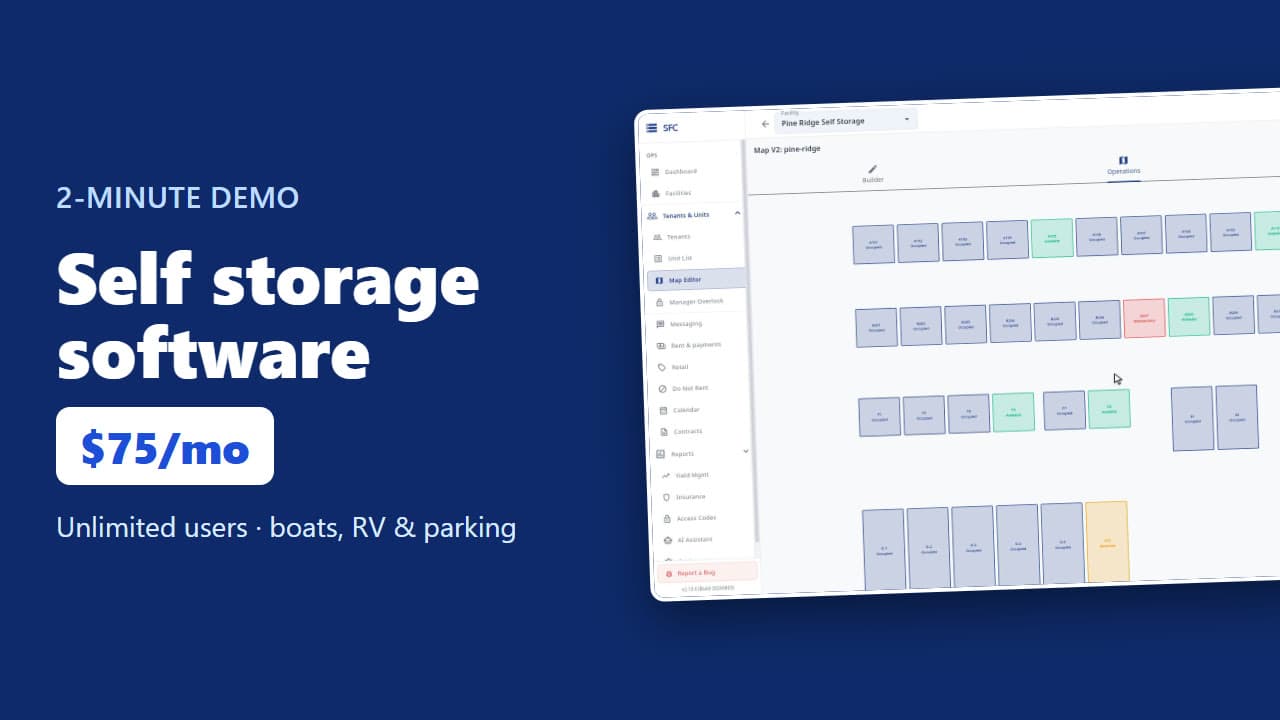
Self storage software demo in two minutes
 1:26
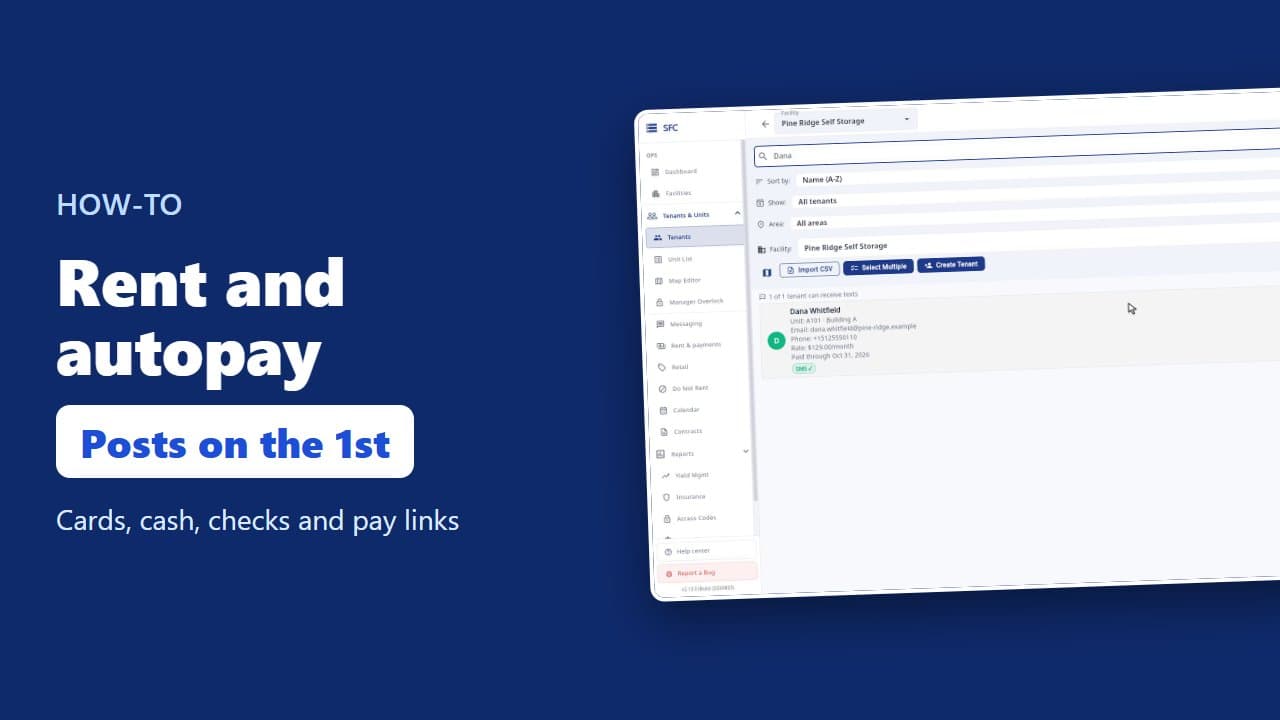
How to collect rent: autopay, cash and check, pay links
 1:20
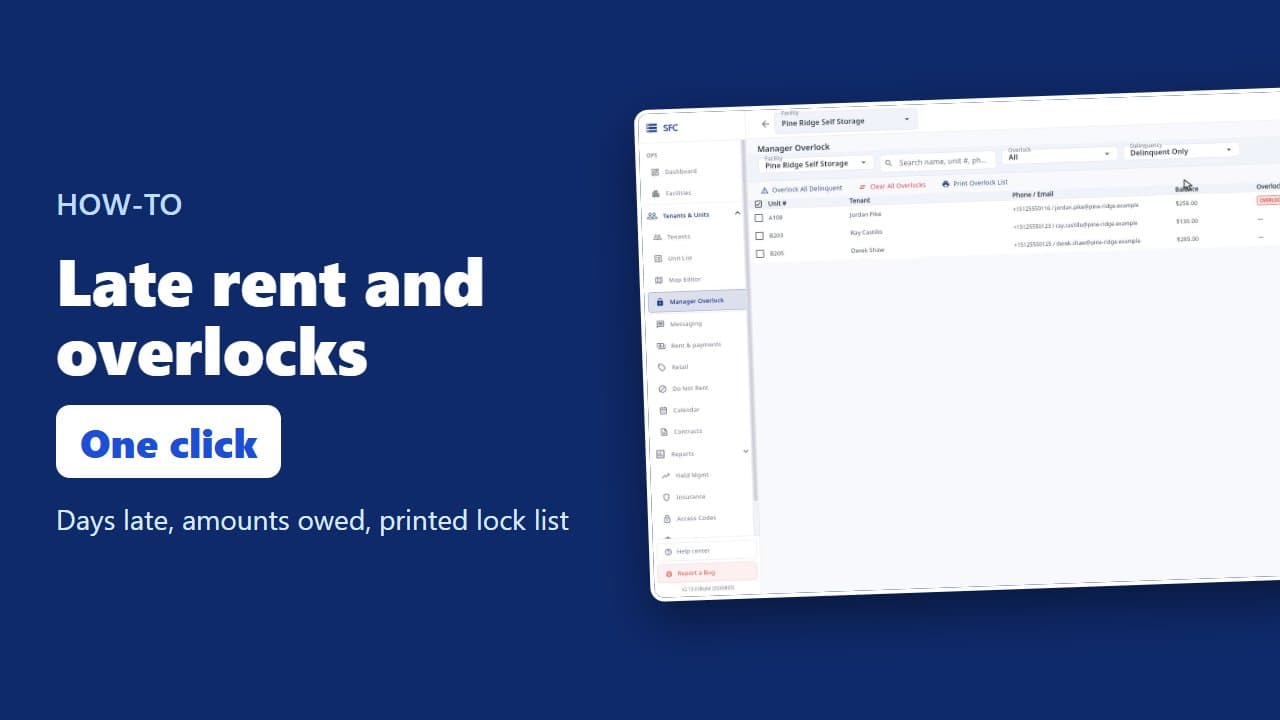
Late rent: find who is behind and overlock their units
 1:16
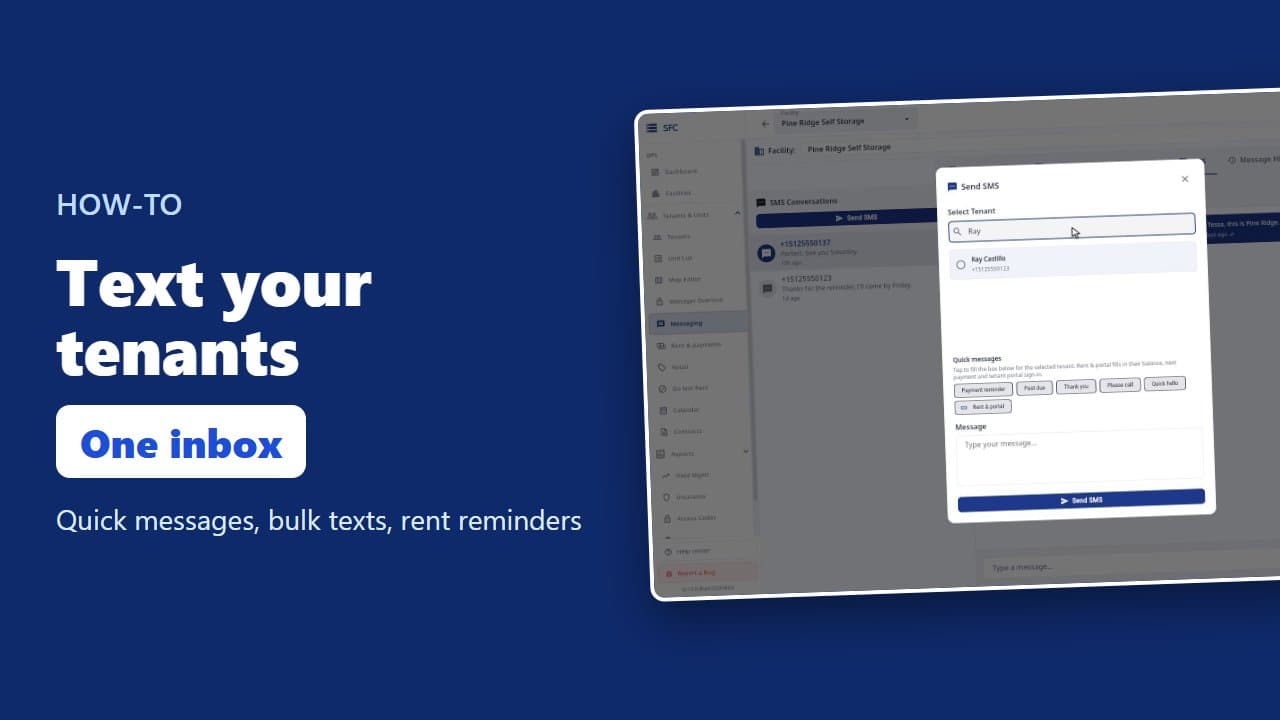
How to text and email your tenants
 1:23
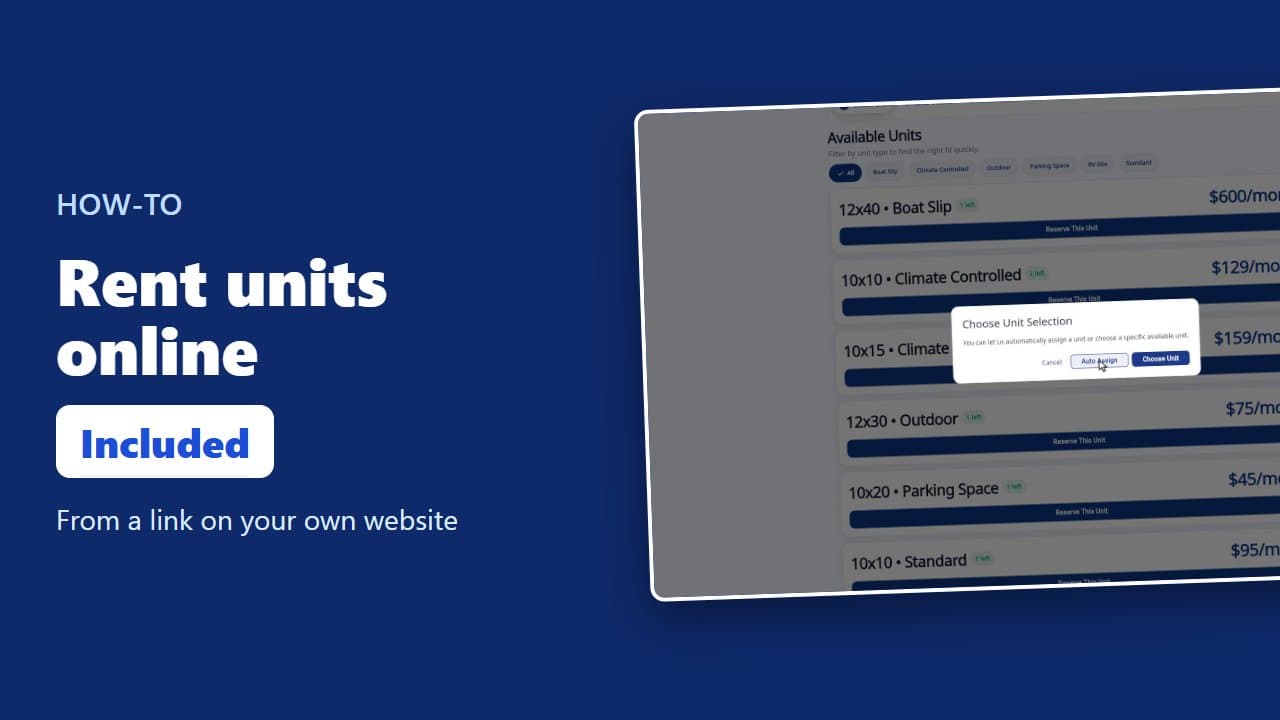
How renters rent a storage unit online
 1:08
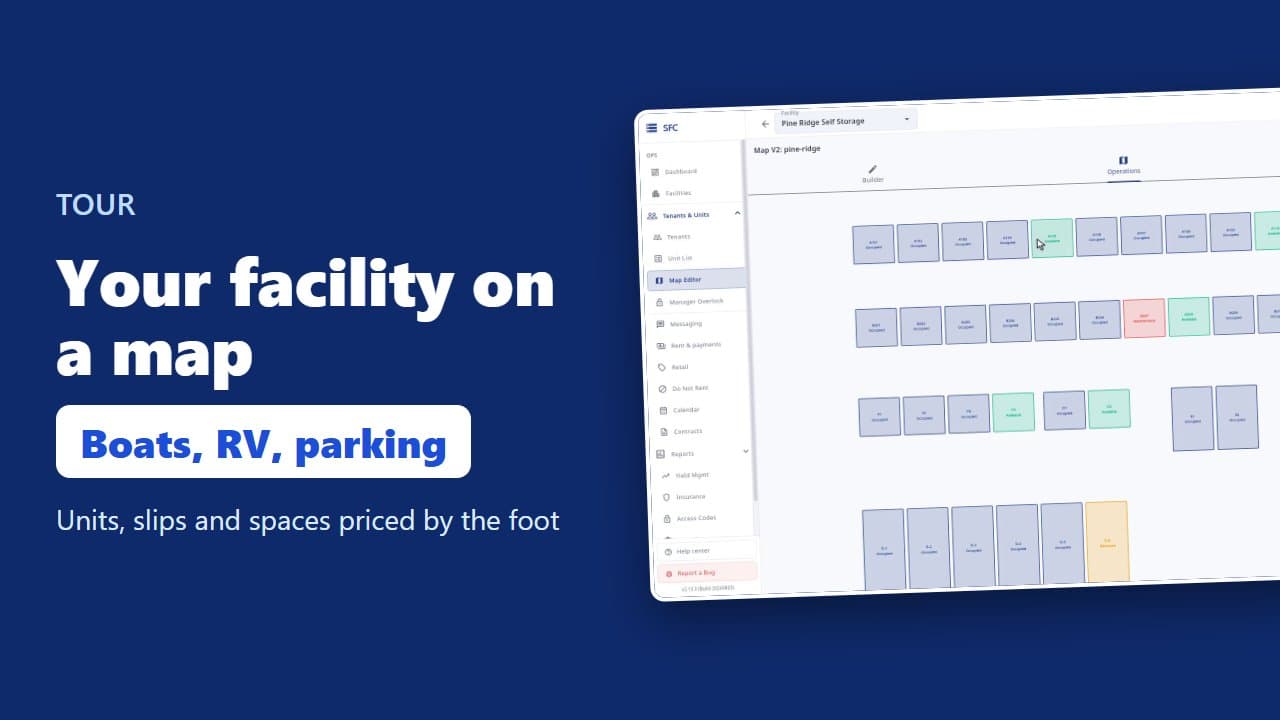
Site map, units, parking, RV sites and boat slips
 1:35
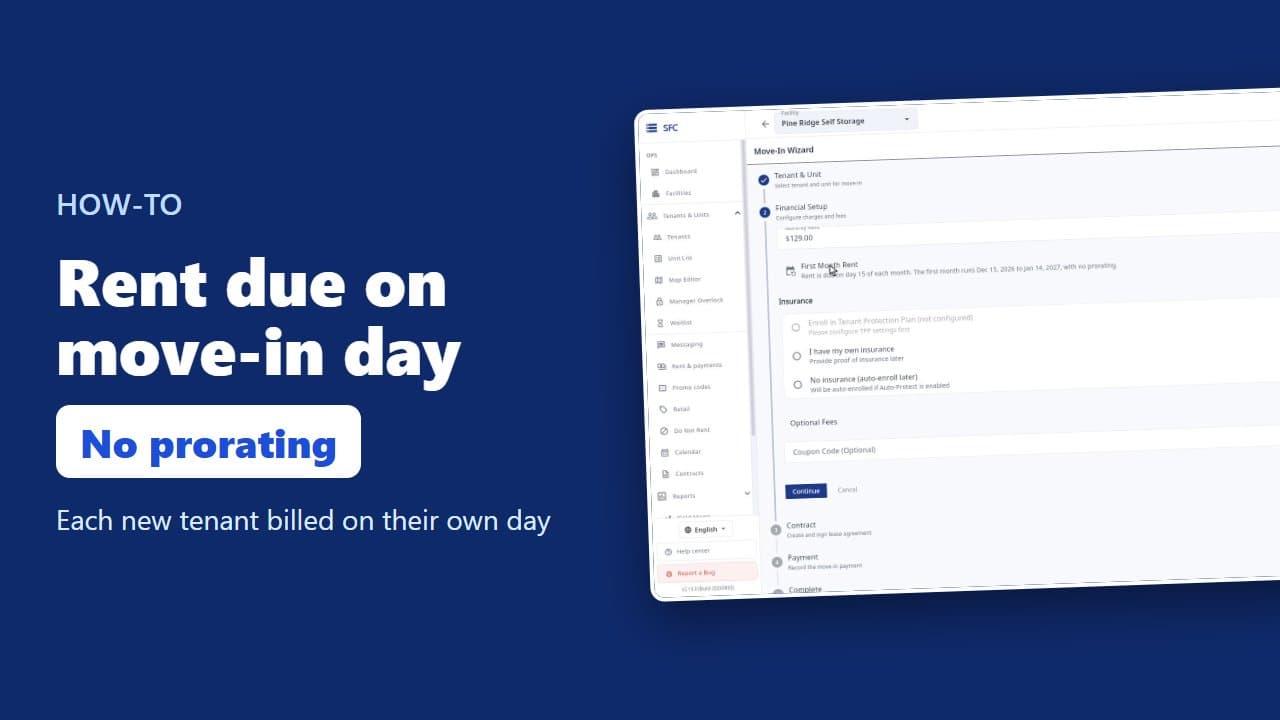
How to bill tenants on their move-in day
 1:17
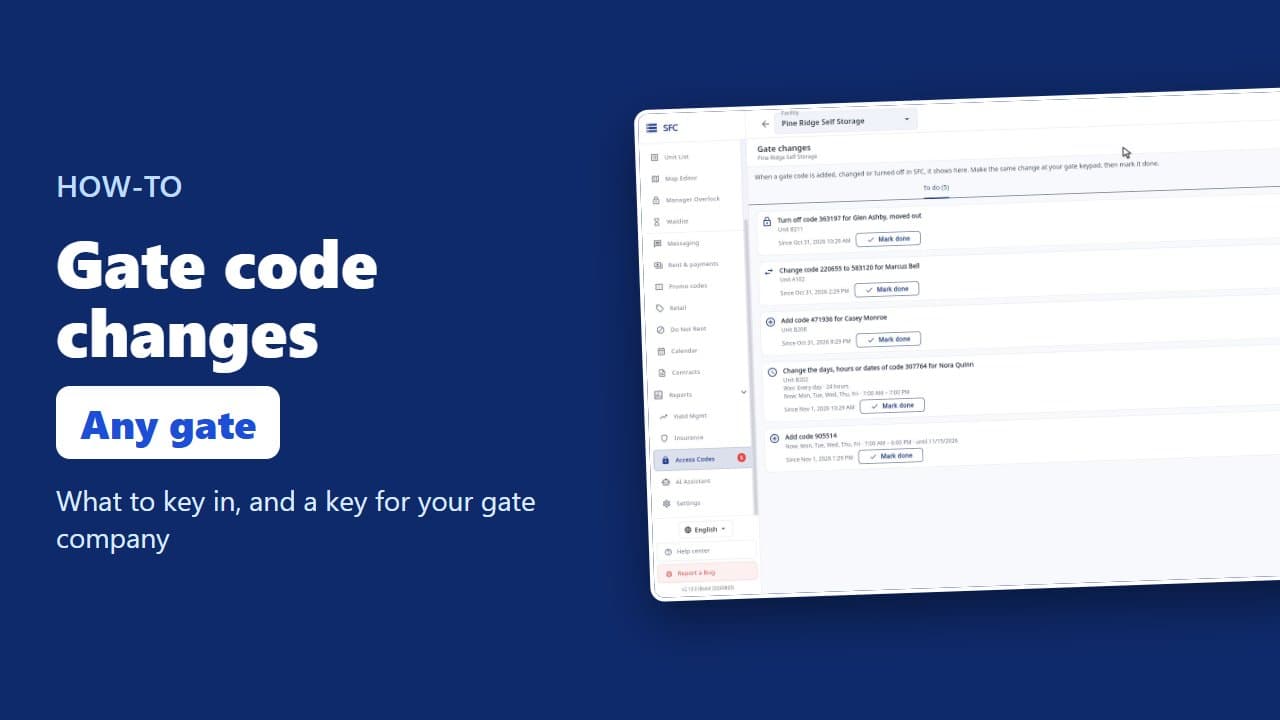
Gate codes and the gate changes list
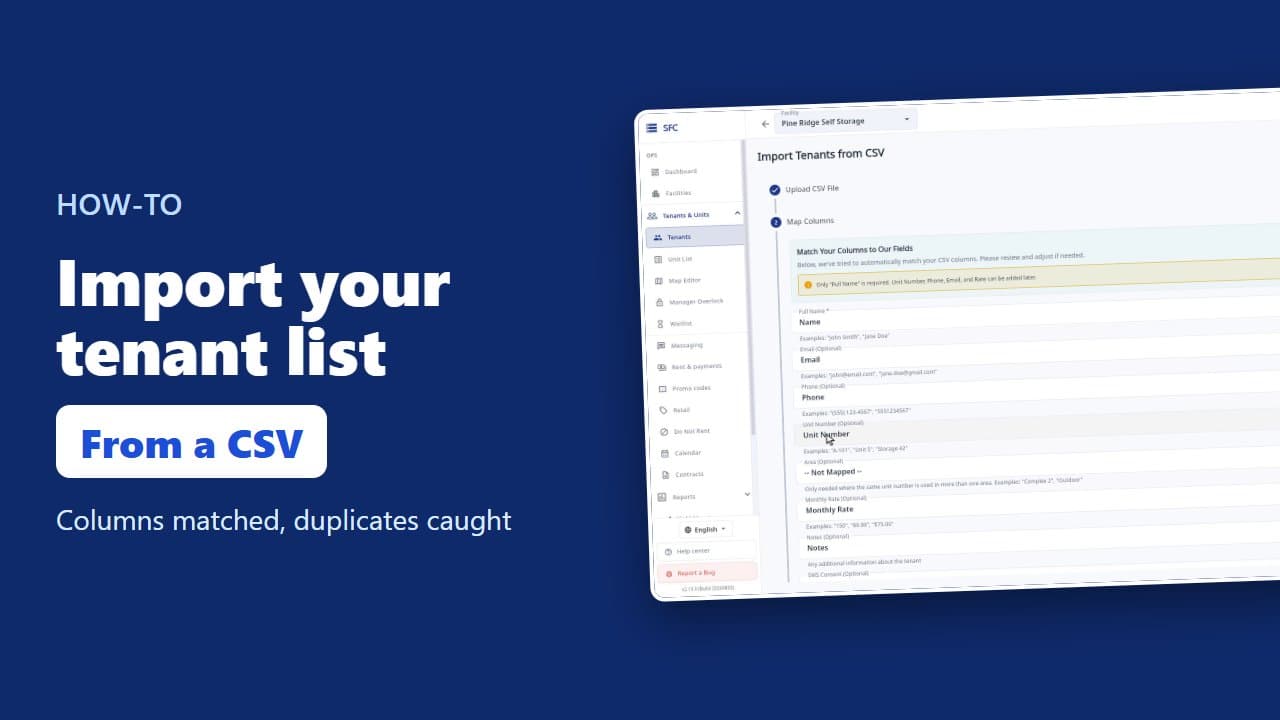 1:18
How to import your tenant list from a spreadsheet
Try it on your own facility
Start a trial, add your units and do it the way the video shows.
No onboarding fee. $75 per facility, per month. Built for self-storage operators.